
You might be in a situation where you have forgotten your cPanel account password and because of that you are unable to login into your hosting account.
Do not worry, resetting cPanel account is easy and it hardly take’s 2 mins for it.
Requirements
- You must know your cPanel login link (You can easily get it from your email sent by hosting provider or just add /cpanel at the end of your domain name. For example hostathash.com/cpanel )
- You must have access to your email which you provided to your hosting provider (so that you can receive reset code).
Steps to reset cPanel account password
1. Open cPanel login page [for example hostathash.com/cpanel (replace hostathash.com with your domain name)]

2. Once you are on login page, Click on “Reset password” option
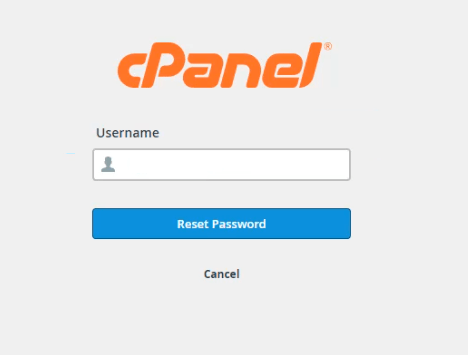
3. Now enter username of your cPanel account(in our case it’s hostathash) and click on “Reset Password”

4. Now you will be asked for a security verification. In our case, we need to enter our email address registered with hosting provider and then click on “Send Security Code“.
Once the security check is completed, reset code will be sent to your registered email account.

5. Login into your registered email account and copy the security code you receive(check SPAM folder also) in the security code option.
Enter the security code and click on “Submit“.

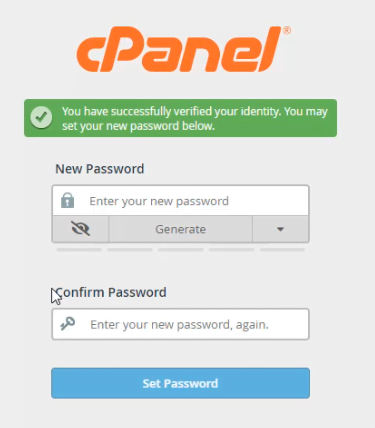
6. After security check is completed successfully, you can now Set a New password for your cPanel account.
7. After you have set a new password, You’ll see message similar to the below screenshot.
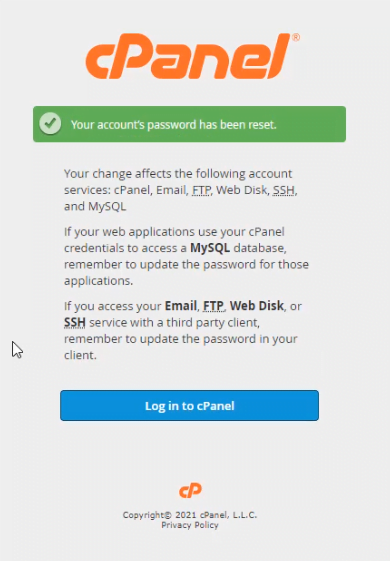
Congratulations! You have successfully reset your cPanel account password.
Feel free to share your questions in the comment section.