
What is cPanel/WHM?
cPanel is Linux based web hosting control panel. It has simple but poweful interface so that you can manage and host your websites on server easily.
You can install cPanel/WHM on a VPS or on Dedicated Server which will provide you an powerful Graphical User Interface.
cPanel is a leading control panel in web hosting industry. It comes with multiple level access such as root and reseller.
Why cPanel/WHM?
You can also perform multiple tasks such as uploading files, creating emails, setting up crons, managing database, install SSL certificate, Blocking visitors, installing wordpress, and many others on cPanel.
You can do server administration easily if you have cPanel/WHM installed on your servers.
cPanel has improved and got more powerful GUI in the couple of years.
Installing cPanel/WHM on a server is very easy as compared to other control panels.
Pre-requirements
Freshly installed Linux OS (64 bit CentOS, CloudLinux, or RHEL)
Hostname (server.example.com)
Static IPv4 address
Firewall (Should be disabled)
Recommended RAM : 2GB
Disk Space : 40GB
Processor Speed : 1.1 GHz
How to set hostname in CentOS?
Give the below command in SSH terminal. (replace “server.example.com” with your hostname)
hostnamectl set-hostname server.example.com
Note: Your hostname will be your server name and “example.com” represent your domain name.
Installation
Once you have met all the requirements, you can proceed with the installation of cPanel/WHM on your server.
1. sudo yum update Run this command in SSH/terminal to update server.

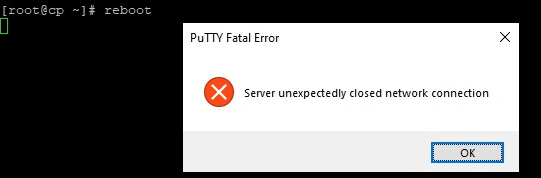
2. reboot Once the update has been completed, you need to restart server by using this command
3. cd /home && curl -o latest -L https://securedownloads.cpanel.net/latest && sh latest This command will start installation of cPanel/WHM in your Server.
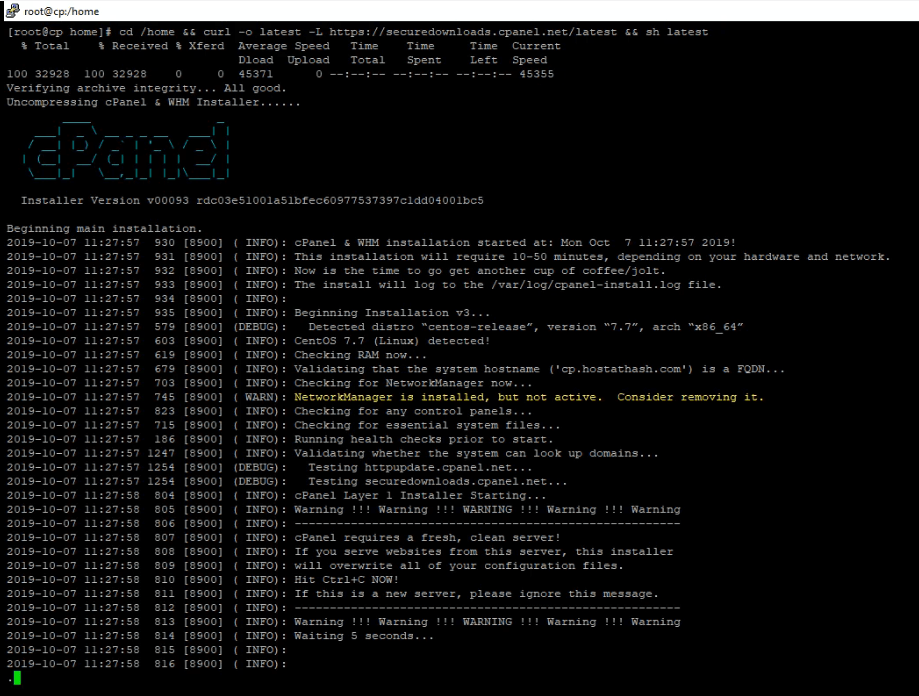
It will take a while until cPanel/WHM is insalled in your server.
Once the installation of cPanel is completed, your SSH output will be like below screenshot:
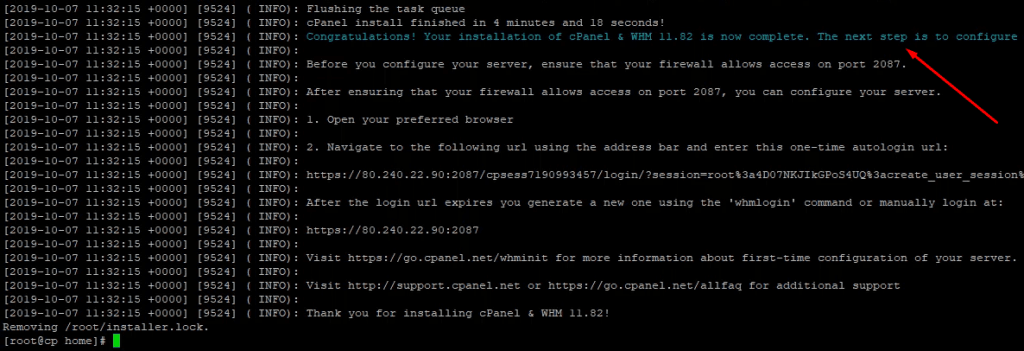
Congratulations! You have just installed cPanel/WHM in your server and your server.
Troubleshooting
1. You must disable the Network Manager service and enable the network.service service before you install cPanel & WHM.
Run the below command in SSH and then try Installation Step #3
systemctl disable NetworkManager.service
systemctl enable network.service
systemctl start network.service
2. cPanel Detected an installer lock file
Follow this solution if you see error like below
Beginning main installation.
2020-10-15 23:10:22 581 ( INFO): cPanel & WHM installation started at: Tue Oct 15 23:10:22 2020!
2020-10-15 23:10:22 582 ( INFO): This installation will require 20-50 minutes, depending on your hardware.
2020-10-15 23:10:22 583 ( INFO): Now is the time to go get another cup of coffee/jolt.
2020-10-15 23:10:22 584 ( INFO): The install will log to the /var/log/cpanel-install.log file.
2020-10-15 23:10:22 585 ( INFO):
2020-10-15 23:10:22 586 ( INFO): Beginning Installation v3…
2020-10-15 23:10:22 391 ( INFO): CentOS 7 (Linux) detected!
2020-10-15 23:10:22 407 ( INFO): Checking RAM now…
2020-10-15 23:10:22 466 ( INFO): Validating that the system hostname (‘cp.hostathash.com’) is a FQDN…
2020-10-15 23:10:22 1252 (DEBUG): – ssystem [BEGIN]: /scripts/rdate
open3: exec of /scripts/rdate failed at /home/cPanelInstall/selfgz23309/install line 238.
Removing /root/installer.lock.
Solution : Make sure you are installing cPanel/WHM in fresh system. There should be no installation done except OS installation server.
If you face issue even if your server has fresh OS installation then run the below commands in SSH/Terminal.
rm -rf /root/installer.lock To remove installer lock
reboot to reboot the server.
After server has been restarted, start from Installation Step #3