The first option to change your WordPress password is from the ‘Forgot password‘ option which you can find on the login page.
However, if don’t have access to the email which you have entered in WordPress as a user, this guide is for you to change WordPress user password directly from the database(phpmyadmin).
Requirements
- Database name (you can find it from wp-config.php file)
- phpMyAdmin access (you can get it from your hosting Control Panel access)
Once you have the above access and information, you can now reset/change WordPress password from the database easily.
Steps
1) Login into the control panel and click on phpMyAdmin to login into the database

2) Select your database (you can find which database is being used by checking wp-config.php file under root folder of your domain or public_html folder)

3) Now select table ending with _users (in my case wp0f_users)

4) You should now get the option to edit the column. Click on edit

5) Change the function of user_pass column to ‘Md5’

6) Enter your new password in the ‘Value‘ of user_pass and click on Go

7) You should get a Success message similar to the below one

8) Now you can log in to WordPress with your new password

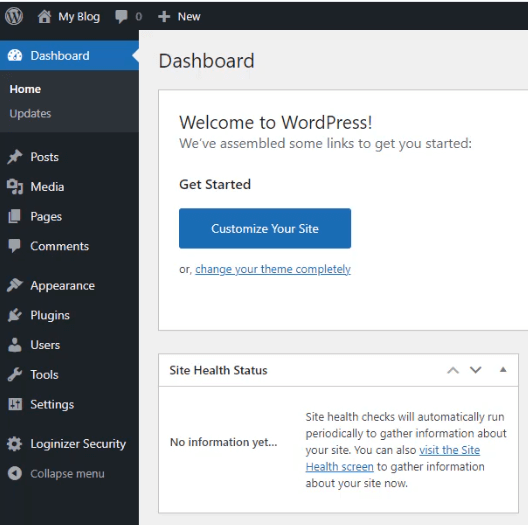
Congratulations! Your log in should be successful now and you have gained back access to your WordPress website easily
Important Note
Resetting password from the database is easy however you should first take a backup of your database and then proceed with our guide.
If steps are not followed correctly, it may break your website or you may end up breaking your website.
Make sure to follow our guide correctly and if possible take professional help.