
Is your WordPress website showing “Briefly unavailable for scheduled maintenance check back in a minute” error message?
If Yes, then do not panic. We have the easiest method to fix this issue and also we will explain you Why it happens and how you can handle it in future too.
Why the error is generated by WordPress?
The following are the reasons after which you might have got this error
1. Plugin Update
Getting updates on plugins are common in WordPress. There can be updates available on plugins and it is also very important to update plugins as there are new updates released by the developer. The updated plugin might include bug fixes or security patches if any.
Some plugins are important in website in if the update is made, your visitor may see broken site.
To avoid your broken website to be seen by your visitor, developer uses Maintenance feature.
Utilizing Maintenance feature while updates are in progress is good compared to showing broken website to your visitor.
Due to some reasons the process of Maintenance might not have been completed and your site remains in Maintenance mode.
.maintenance file is a feature added by WordPress team to avoid showing broken websites to your visitors while the updates are being made in your WordPress website.
2. Theme Update
Similar to plugins, you might also get updates on plugins. Theme updates are crucial and most of the time your website will show “Briefly unavailable for scheduled maintenance check back in a minute” message to your visitors to avoid showing broken sites until the updates are completed.
Just like the case of Plugin update, the process do not get completed and the website remains in Maintenance mode.
Getting this error is more common while updating Themes.
3. WordPress version upgrade
WordPress version upgrade is very crucial and developers of WordPress utilize Maintenance mode to avoid showing broken websites to your visitors until the upgrade are completed.
Same like plugin and theme update if the process of Maintenance is not completed, you will see the error message of Maintenance mode.
How it happens?
WordPress has a feature where developers can add WordPress in Maintenance until the updates/upgrades to plugin, theme or WordPress are completed.
This feature helps to avoid showing your visitors a broken website and is much more convenient to show a Maintenance mode message than broken website.
Once the update/upgrades are completed, the function to get back your website Live runs and the Maintenance mode is removed.
When maintenance mode is enabled, a file named .maintenance is added by WordPress in your root directory.
Why it happens?
There are a few most common reasons why the website did not come out of maintenance mode
- Slow Server – (Because of Slow server, update is not yet completed)
- Low Memory – (Due to low memory, the process was unable to get completed)
- Timeout during update – (Update was taking too much time and PHP timeout was reached)
- Interruption – (You closed the browser or tab and the process did not complete)
How to fix this error (Solution)
Using File manager
- Login into your Control Panel
- Open file manager
- Navigate to the folder where you have your website files (normally under public_html)
- Search for the file .maintainance
- Delete file .maintainance
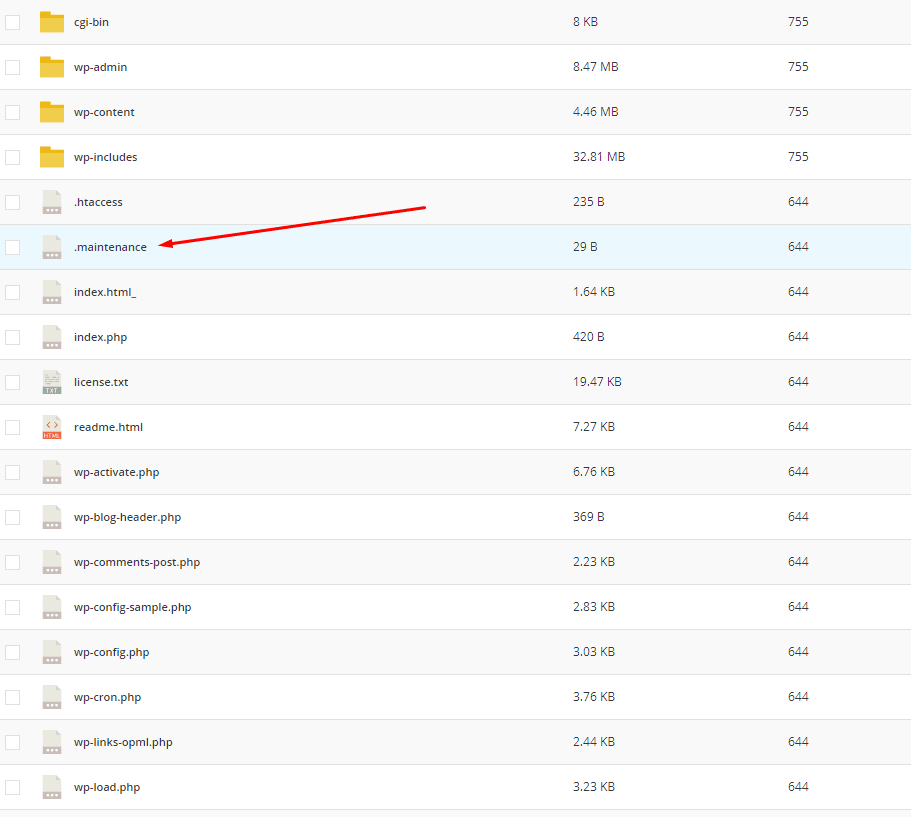
Using FTP
In case you don’t have any control panel, you can delete the .maintenance file via too.
1) Login into FTP using FileZilla or any other FTP software.
2) Locate to your domain root directory[normally public_html] of website where all files are stored.
3) Find and delete .maintenance file.

Using SSH (not recommended)
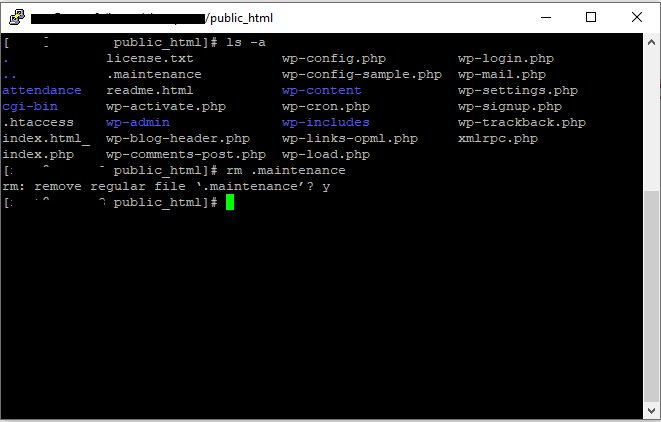
1.) Login into Putty or any other SSH client using SSH login details
2) Navigate to to root folder of your website file i.e public_html using command cd public_html (Folder location depends upon your server but normally its public_html)
3) Now list files using command ls -a
4) As we have found .maintenance file, lets delete it
5) Enter command rm .maintenance
6) A message will be shown “rm: remove regular file ‘.maintenance’?”
7) Simply enter y and hit enter.
8) The .maintenance file will be deleted and your site will be out of Maintenance mode
How to avoid “Briefly unavailable for scheduled maintenance. Check back in a minute” error in WordPress?
- Do not close the browser/tab if there is update running
- Avoid updating too many plugins at same time
- Check Compatibility before you update/upgrade theme/plugin or WordPress version
- Use Staging website for making updates
Final thoughts
It is normal to face this error on your wordpress website but it is easy to fix. Keep a note of the things mentioned above to avoid getting this error in future.
If you are facing any issues, let us know in the comments.